
See how Squirrel actually works.
A screen-by-screen walk through a normal day with Squirrel — from the menu-bar tray you live in, to capturing the scatter, focusing, and seeing what matters now. No accounts, no cloud; just your laptop and a plain Markdown vault.
Or download from GitHub-
 01
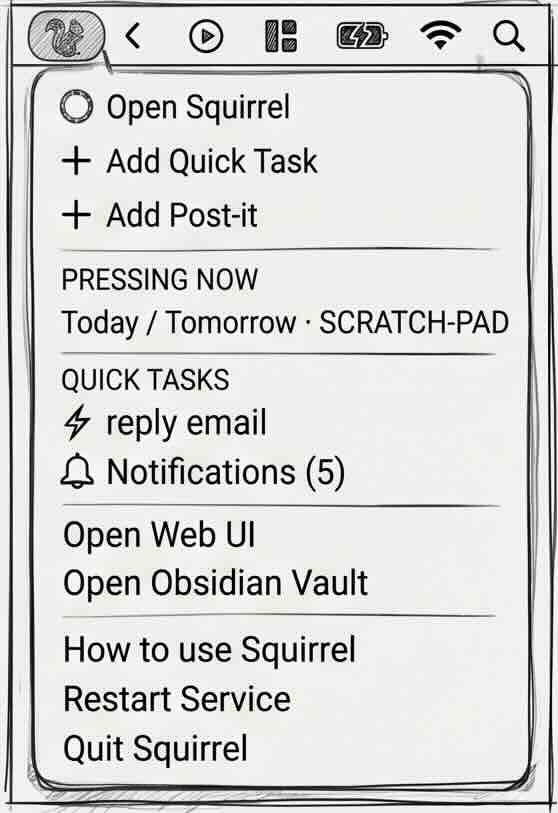
01Lives in your menu bar
Everything is one click from the macOS menu bar — add a quick task, pin a post-it, glance at what's pressing now, or jump straight into the web UI or your Obsidian vault. There's no window to hunt for and no focus to break.
-
 02
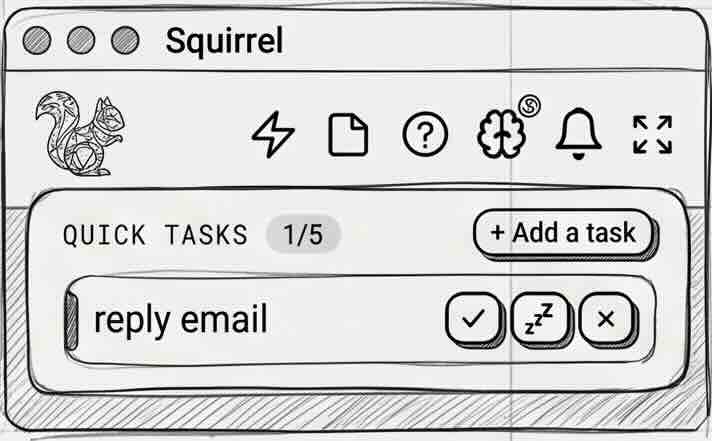
02Capture the scatter as quick tasks
A stray "reply email" lands in a short quick-task list — no project, no ceremony. Tick it done, snooze it for later, or dismiss it. The noise leaves your head and stops circling.
-
 03
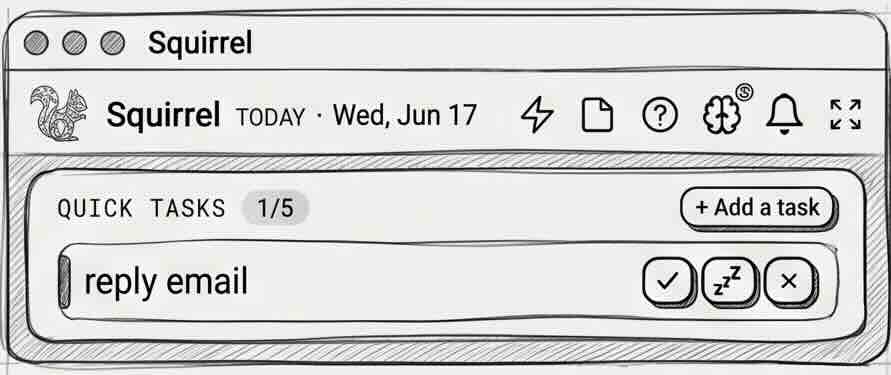
03A compact "today" you can trust
The popup always shows the date and the tasks in front of you right now, so re-entry after a distraction takes seconds, not minutes — you never have to reconstruct where you were.
-
 04
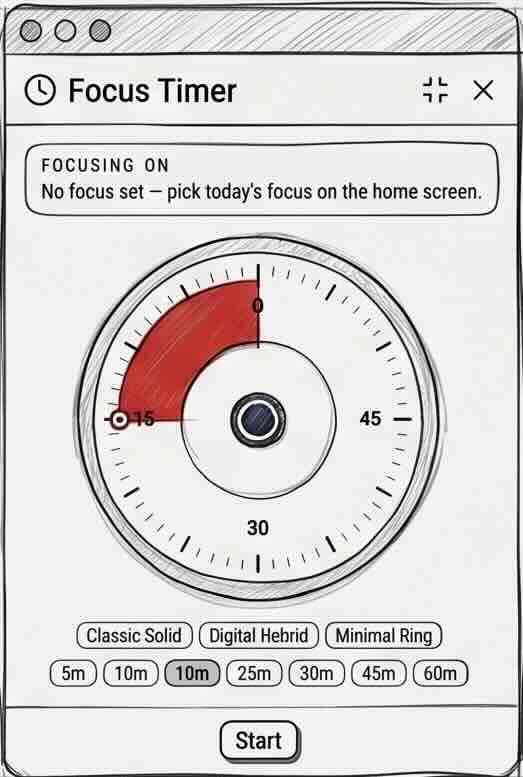
04Drop into a focus timer
Pick a length from 5 to 60 minutes and the dial you like — classic, hybrid, or minimal ring — then start. A visual countdown puts a gentle boundary around deep work without feeling like a stopwatch breathing down your neck.
-
 05
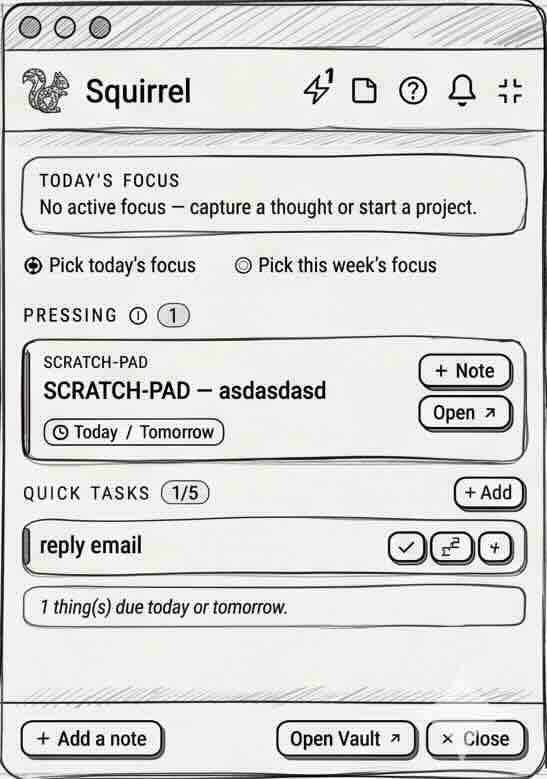
05Your home screen — today's focus and what's pressing
Set today's or this week's focus, see pressing items and your scratch-pad in one place, and get a quiet nudge when something's due today or tomorrow. One glance answers "what should I be doing?"
-
 06
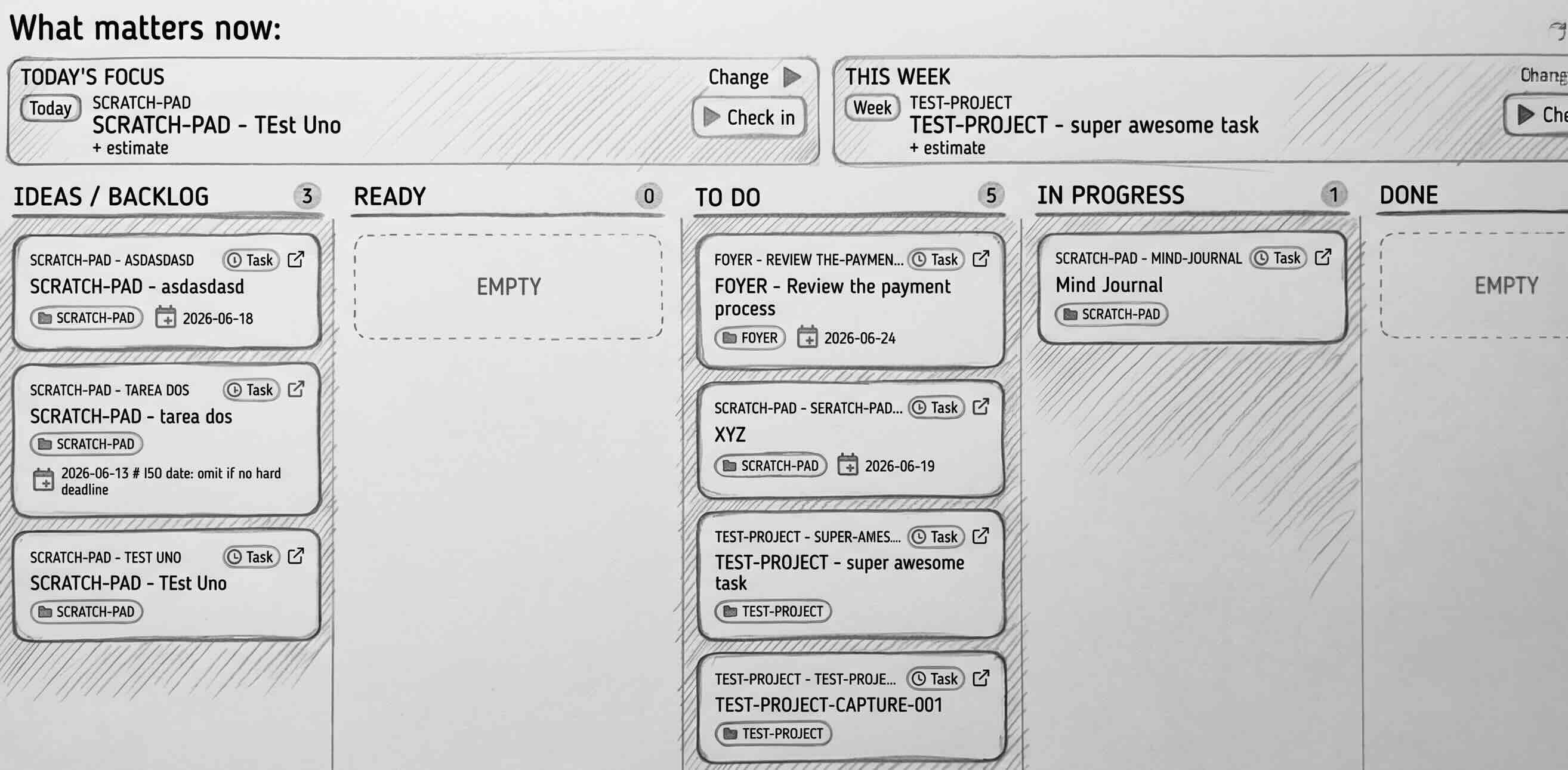
06See the whole board
When you want the bigger picture, the web UI lays your work out as a board — Ideas, Ready, To-do, In-progress, Done — with today's focus and this week pinned to the top so the trail never disappears under the backlog.
-
 07
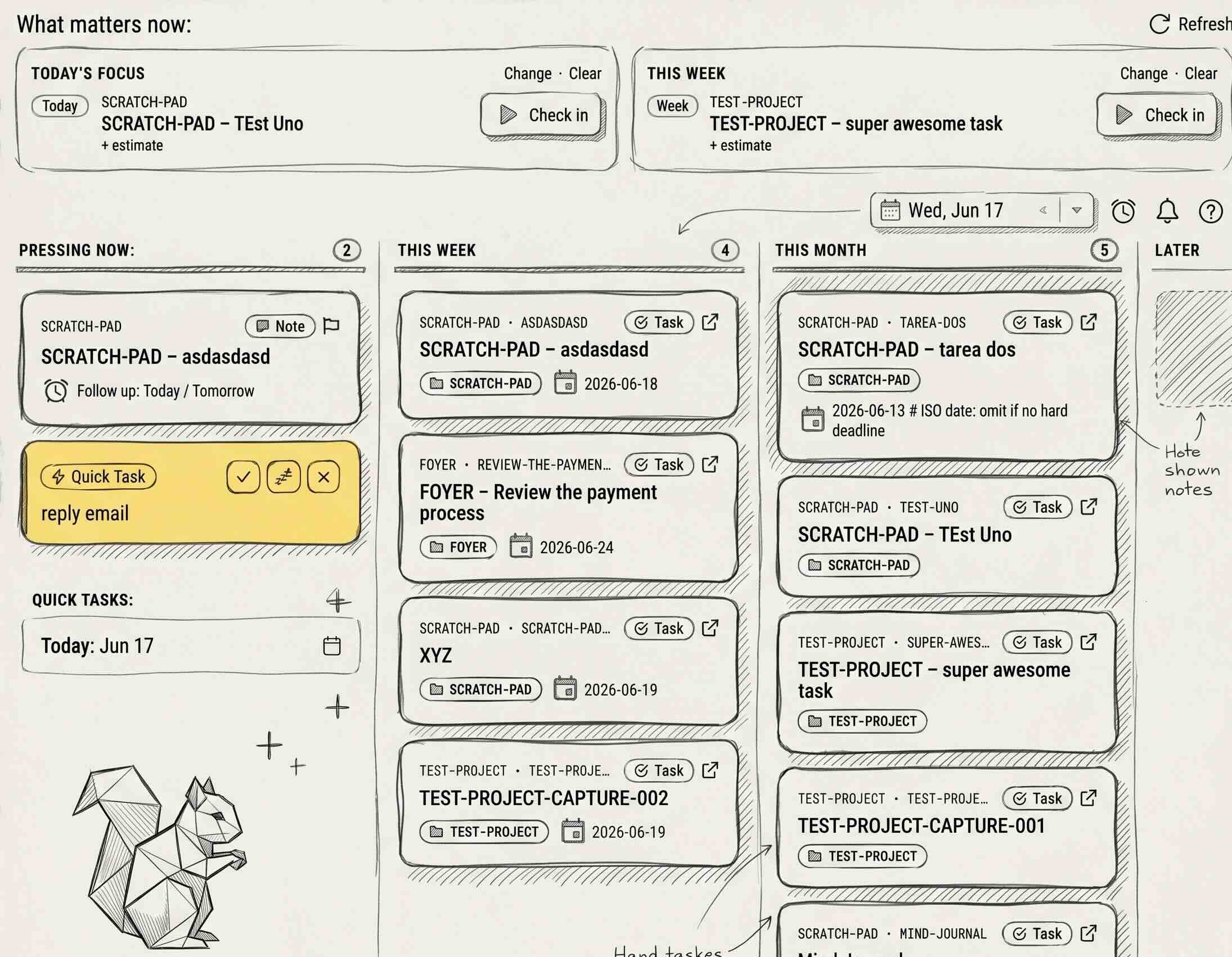
07What matters now, by horizon
Priority lanes — Pressing now, This week, This month, Later — turn a scattered backlog into a single trail you can follow from the top down, so you spend attention on what's next instead of on deciding what's next.
Ready to keep the trail?
Local-first, no account, plain Markdown. Install Squirrel and capture the scatter in under a minute.